
Electronics Not Working? Diagnostic Tips Before You Call for Repair
Basic troubleshooting steps anyone can try before bringing electronics in for professional repair. Often the fix is simpler than you think.
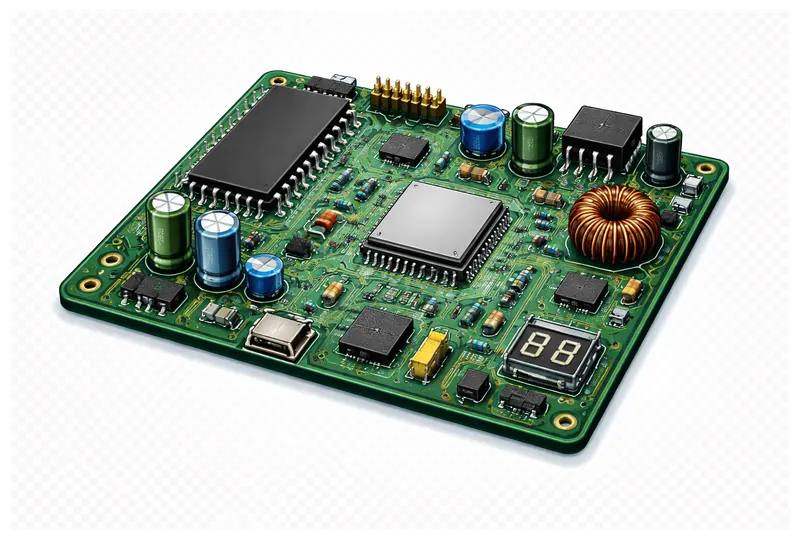
Before you assume your electronics are broken beyond repair, there are some universal troubleshooting steps worth trying. You’d be surprised how often the “fix” is something simple that doesn’t require any technical skill.
The Universal First Steps
1. Power Cycle Everything
The oldest trick in IT support works for most electronics:
- Turn off the device completely
- Unplug it from power
- Wait 30-60 seconds
- Plug it back in
- Turn it on
This clears temporary glitches in electronic circuits and resets microprocessors to their default state. It works on everything from TVs to coffee makers.
2. Check Your Connections
Loose connections cause more “broken” electronics than actual failures.
What to check:
- Power cables at both ends
- HDMI/display cables
- Audio cables
- Network cables
- Any removable components
Pull each connection out and reseat it firmly. Look for bent pins, damaged cables, or debris in ports.
3. Try a Different Outlet
Wall outlets can fail, trip, or have loose wiring. Before assuming your device is broken:
- Try a different outlet in the same room
- Try an outlet in a different room
- Check if GFCI outlets have tripped (press the reset button)
- Test the outlet with something you know works
4. Check for Updates
Modern electronics often have firmware that can be updated:
- TVs, streaming devices, and game consoles
- Printers and network equipment
- Smart home devices
- Audio equipment
An outdated firmware can cause unexpected behavior that looks like hardware failure.
Identifying the Actual Problem
Before seeking repair, try to identify exactly what’s wrong. This helps us diagnose faster and may reveal a simple fix.
Power Problems
Device doesn’t turn on at all:
- Check power source (outlet, surge protector)
- Try a different power cable if possible
- Look for power indicator lights
- Check for physical damage to the power port
Device turns on briefly then shuts off:
- Could be overheating - check ventilation
- Could be a failing power supply
- Could be a safety shutoff
Display Problems
No picture but device seems to be running:
- Check cable connections
- Try a different input on the TV/monitor
- Try a different cable
- Try a different TV/monitor if available
Picture problems (lines, flickering, wrong colors):
- Check cable connections - often fixes display issues
- Try a different cable
- Check display settings
- Problem could be with the display itself or the source device
Audio Problems
No sound:
- Check volume settings (including mute)
- Check audio output settings
- Test with different speakers/headphones
- Check audio cable connections
Distorted sound:
- Lower the volume - distortion at high volume can be normal
- Check cable connections
- Test with different audio source
- Could indicate a failing amplifier or speaker
Connectivity Problems
WiFi issues:
- Restart your router and the device
- Check if other devices can connect
- Try moving closer to the router
- Check for WiFi network name and password
Bluetooth issues:
- Toggle Bluetooth off and on
- Remove and re-pair the device
- Check if other Bluetooth devices work
- Some devices can only connect to one thing at a time
When to Stop and Call a Professional
Stop troubleshooting if you encounter:
- Burning smell or visible smoke
- Sparking or arcing
- Unusual heat from the device
- Physical damage to the casing
- Exposed wires or internal components
- Water damage or exposure
Also stop if:
- You’re not comfortable with what you’re doing
- The device requires disassembly to troubleshoot further
- You’ve tried the basic steps and nothing helped
- The device contains high voltages (tube amps, microwaves, TVs)
Information That Helps Us Diagnose
When you bring something in for repair, telling us these things speeds up diagnosis:
- What exactly happens? Be specific - “no picture” vs “picture but no sound” vs “picture with lines”
- When did it start? Gradual or sudden? After an event (storm, drop, spill)?
- What have you already tried? Don’t be embarrassed - we want to know
- Any error messages? Write them down or take a photo
- Make and model number - Usually on a label on the back or bottom
What We Offer
We provide free diagnosis on all electronics you bring in. We’ll:
- Thoroughly test the device
- Identify exactly what’s wrong
- Explain the problem in plain language
- Give you a clear estimate for repair
- Tell you honestly if repair makes sense
There’s no obligation. If you decide not to repair, you owe us nothing. If the device isn’t worth fixing, we’ll tell you - we’d rather earn your trust than make a quick repair on something that should be replaced.
Electronics We Commonly Repair
- TVs - Power issues, display problems, HDMI ports
- Computers - Won’t boot, slow performance, hardware upgrades
- Gaming consoles - HDMI ports, disc drives, overheating
- Audio equipment - Amplifiers, receivers, turntables
- Kitchen appliances - Microwaves, coffee makers, mixers
- Vintage electronics - Tube amps, vintage stereos, retro gaming
If it has a circuit board and it’s broken, bring it in. We’ll take a look.
Tags:
Need Professional Help?
If you've tried these troubleshooting steps and your device still isn't working, we're here to help. Bring it in for a free diagnosis - we'll figure out what's wrong and give you a clear estimate before any work begins.
Get a Free Diagnosis