
Gaming Console Troubleshooting: PS5, Xbox, and Nintendo Switch Common Problems
Console won't turn on? Games freezing? Learn how to troubleshoot common PlayStation, Xbox, and Nintendo Switch problems before seeking repair.
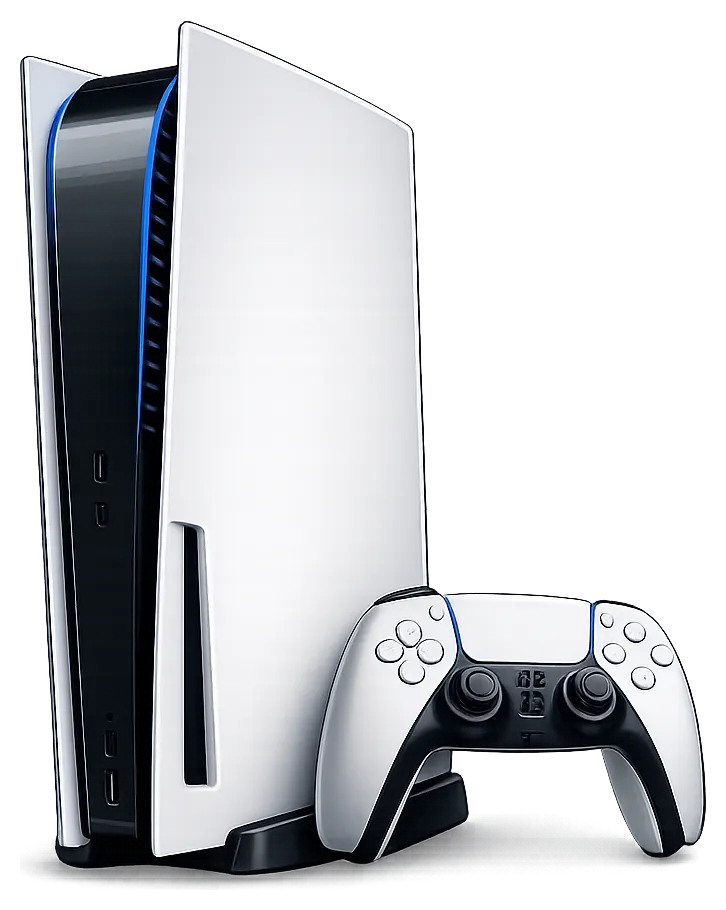
Gaming consoles are complex electronics that can develop problems over time. Before you panic about losing your save data or paying for expensive repairs, there are several troubleshooting steps you can try at home.
Universal Troubleshooting Steps
These steps apply to all gaming consoles:
Console Won’t Turn On
- Check power connections: Unplug the power cord from both the wall and console, wait 30 seconds, reconnect
- Try a different outlet: Rule out outlet issues
- Check the power brick (if applicable): Look for LED indicators
- Inspect the power button: Make sure it’s not stuck or damaged
Console Turns On But No Display
- Check HDMI cable: Try a different cable
- Try a different HDMI port: Both on the TV and console
- Try a different TV: Rule out TV issues
- Boot in safe mode: Each console has a safe mode for troubleshooting
Overheating and Shutting Down
- Check ventilation: Don’t block vents, keep console in open area
- Clean dust buildup: Use compressed air on vents
- Check room temperature: Consoles struggle in hot environments
- Let it cool down: Wait 30 minutes before restarting
PlayStation 5 Specific Issues
PS5 Blinking Blue Light (Blue Light of Death)
This indicates the console isn’t outputting a signal.
Try:
- Boot into Safe Mode (hold power button 7 seconds until second beep)
- Select “Rebuild Database”
- If that fails, try “Reset PS5” (keeps data) or reinstall system software
PS5 Disc Drive Issues
Disc not reading:
- Clean the disc with a soft cloth, wiping from center to edge
- Try a different disc to isolate the problem
- Check for debris in the disc slot
Disc drive making loud noise:
- Some noise is normal, especially at startup
- Persistent grinding noise indicates hardware failure
PS5 Controller Not Connecting
- Connect controller with USB cable
- Press the reset button (small hole on back) for 5 seconds
- Re-pair the controller
Xbox Series X/S Specific Issues
Xbox Won’t Start
For the “click of death” (console clicks but won’t start):
- Hold power button 10 seconds to fully power off
- Unplug power for 30 seconds
- Hold power button while unplugged to drain residual power
- Reconnect and try again
Xbox Overheating
The Xbox Series X especially needs good ventilation.
What to check:
- Don’t place in enclosed spaces
- Keep the top vent completely clear
- Clean dust from vents regularly
- Consider a cooling stand for heavy use
Xbox Controller Sync Issues
- Press the sync button on both console and controller
- If wireless fails, try a USB cable connection
- Update controller firmware through Settings > Devices & connections
- Replace batteries or charge if using rechargeable
Nintendo Switch Specific Issues
Switch Won’t Turn On
- Hold power button for 15 seconds to force restart
- Connect to charger and wait at least 30 minutes (may be completely dead)
- Try a different charger/dock
- Check for bent pins in the dock connector
Joy-Con Drift
This is the most common Switch problem - the joystick registers movement when you’re not touching it.
Temporary fixes:
- Calibrate in Settings > Controllers > Calibrate Control Sticks
- Use compressed air around the joystick base
- Try the joystick recalibration under the flap at the stick base
Permanent fix requires repair. We can replace the joystick module, which is more cost-effective than buying new Joy-Cons.
Switch Dock Not Displaying
- Unplug everything from dock, wait 30 seconds, reconnect in order: power, HDMI, then Switch
- Try a different HDMI cable
- Check for debris in the dock’s USB-C connector
- Try the Switch directly with a USB-C to HDMI adapter to rule out dock failure
Cartridge Not Reading
- Clean cartridge contacts with isopropyl alcohol and a soft cloth
- Check for bent pins in the cartridge slot
- Try a different game to isolate the problem
When to Seek Professional Repair
Bring your console in if:
- Hard drive failure symptoms (constant crashes, save data corruption)
- HDMI port is physically damaged
- Power supply failure (not a connection issue)
- Disc drive motor failure
- Water damage
- Persistent overheating after cleaning
- Joy-Con drift that won’t calibrate away
What We Can Repair
We handle most gaming console repairs:
- HDMI port replacement
- Power supply issues
- Disc drive repair and replacement
- Hard drive/SSD upgrades and replacement
- Overheating issues (thermal paste, fan replacement)
- Joy-Con joystick replacement
- Controller board repairs
Protecting Your Data
Before bringing in a console for repair:
- Back up save data to cloud storage if possible (PS Plus, Xbox Game Pass, Nintendo Switch Online)
- Sign out of accounts if the console won’t be in your possession
- Note your settings in case we need to factory reset
We always try to preserve your data, but some repairs require system resets. We’ll discuss this with you before proceeding.
Tags:
Need Professional Help?
If you've tried these troubleshooting steps and your device still isn't working, we're here to help. Bring it in for a free diagnosis - we'll figure out what's wrong and give you a clear estimate before any work begins.
Get a Free Diagnosis