
Keeping Your Gaming Setup Running: Maintenance Tips
Protect your gaming investment with proper maintenance. Learn how to keep your gaming PC, consoles, and accessories running smoothly.
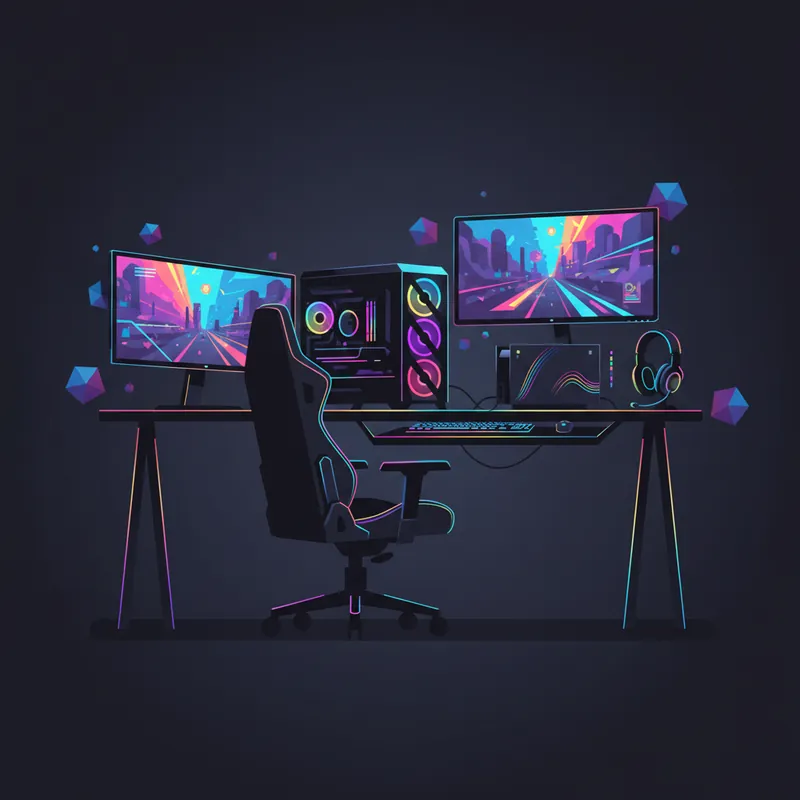
Gaming setups represent a significant investment - from high-end PCs to current-generation consoles and premium accessories. Proper maintenance keeps everything running smoothly and extends the life of your equipment.
Gaming PC Maintenance
Dust Management
Dust is the enemy of gaming PCs:
Regular cleaning schedule:
- External dusting: Weekly
- Internal compressed air cleaning: Monthly
- Deep cleaning: Every 6 months
Cleaning techniques:
- Use compressed air in short bursts
- Hold fans in place while cleaning (prevent damage)
- Clean filters separately with water
- Work in a well-ventilated area
Prevention:
- Use filtered intake fans
- Keep PC off the floor
- Maintain clean room environment
- Consider positive pressure case setup
Thermal Management
Heat kills components:
Monitor your temperatures:
- CPU shouldn’t exceed 80°C under load
- GPU temps vary but 85°C+ is concerning
- Use monitoring software to track temps
Maintain cooling:
- Replace thermal paste every 2-3 years
- Ensure fans are working properly
- Clean radiators and heatsinks
- Verify good cable management for airflow
Software Maintenance
Keep your system running efficiently:
- Update GPU drivers regularly
- Keep Windows/OS updated
- Run disk cleanup periodically
- Defragment HDDs (not SSDs)
- Monitor SSD health
- Scan for malware regularly
Console Maintenance
PlayStation and Xbox
Dust prevention:
- Don’t place in enclosed cabinets
- Ensure adequate ventilation clearance
- Clean vents with compressed air monthly
- Keep away from fabric-shedding materials
Heat management:
- Don’t stack other electronics on top
- Allow 4+ inches clearance on all sides
- Don’t cover while running
- Consider vertical stands for better airflow
Storage considerations:
- Keep internal storage under 90% full
- Use external drives for older games
- Periodically rebuild database (PlayStation)
Nintendo Switch
Unique concerns:
- Clean air intake vents carefully
- Keep dock connections clean
- Protect screen when in handheld mode
- Joy-Con care (avoid drift triggers)
Joy-Con maintenance:
- Keep thumbstick bases clean
- Use compressed air around sticks
- Store with sticks centered
- Calibrate periodically
Controller Maintenance
Controllers take a beating:
Cleaning
- Wipe surfaces with isopropyl alcohol
- Clean around buttons with cotton swabs
- Clear debris from thumbstick edges
- Clean trigger mechanisms
Stick Drift Prevention
- Don’t slam sticks to extremes
- Keep the area around sticks clean
- Calibrate in system settings
- Replace when drift becomes problematic
Battery Care
For wireless controllers:
- Don’t leave on charger constantly
- Use when fully charged, charge when low
- Store with partial charge
- Replace batteries when capacity drops
Monitor/Display Care
Screen Protection
- Clean with proper microfiber cloths
- Never spray liquid directly on screen
- Avoid touching the screen
- Use screen savers or auto-off for OLED
Gaming-Specific Settings
- Enable game modes for lower latency
- Don’t run at max brightness constantly
- Configure proper HDR settings
- Match refresh rate to your hardware
Audio Equipment
Gaming Headsets
- Clean ear pads regularly
- Replace ear pads when worn
- Keep headband clean
- Store on headset stand
- Don’t stretch the headband
- Keep mic foam clean
Speakers and Soundbars
- Dust regularly
- Don’t run at max volume
- Position away from walls if ported
- Clean grilles with soft brush
Cable Management
Good cable management:
- Improves airflow
- Reduces tripping hazards
- Makes troubleshooting easier
- Looks better
- Protects cables from damage
Tips:
- Use velcro ties (not zip ties)
- Route away from heat sources
- Don’t kink cables sharply
- Label connections for easy identification
Power Protection
Gaming equipment is vulnerable to surges:
- Use quality surge protectors
- Consider UPS for PC gaming
- Replace surge protectors every 3-5 years
- Unplug during electrical storms
When Things Go Wrong
Common gaming equipment problems we repair:
PCs:
- Overheating issues
- Power supply failures
- GPU problems
- Storage failures
Consoles:
- Disc drive problems
- HDMI port damage
- Overheating shutdowns
- Power issues
Controllers:
- Stick drift repair
- Button failures
- Charging issues
- Wireless connectivity problems
Warning Signs
Get maintenance or repair when you notice:
- Unusual fan noise
- Performance drops
- Unexpected shutdowns
- Visual artifacts
- Input lag increases
- Strange sounds from disc drives
- Controller drift developing
Preventive Maintenance Schedule
Weekly:
- Wipe down controllers
- Dust external surfaces
- Check ventilation clearance
Monthly:
- Clean console vents
- Blow out PC dust
- Clean keyboard
Quarterly:
- Deep clean PC interior
- Check thermal performance
- Update drivers
Annually:
- Replace thermal paste if needed
- Replace surge protectors
- Full system cleaning
Keep your gaming setup running strong. If you’re experiencing issues, bring it in for a free diagnosis and we’ll get you back in the game.
Tags:
Need Professional Help?
We are closed to new repair work at the moment, so we are not able to take a look at your device. Phone, email, and the contact form are all turned off. You may want to find another repair shop in the meantime.
Not Accepting New Work