
Robot Vacuum Troubleshooting: Roomba and Other Robot Vacuums Not Working
Robot vacuum not cleaning, not charging, or acting strange? Learn how to troubleshoot common iRobot Roomba and other robot vacuum problems.
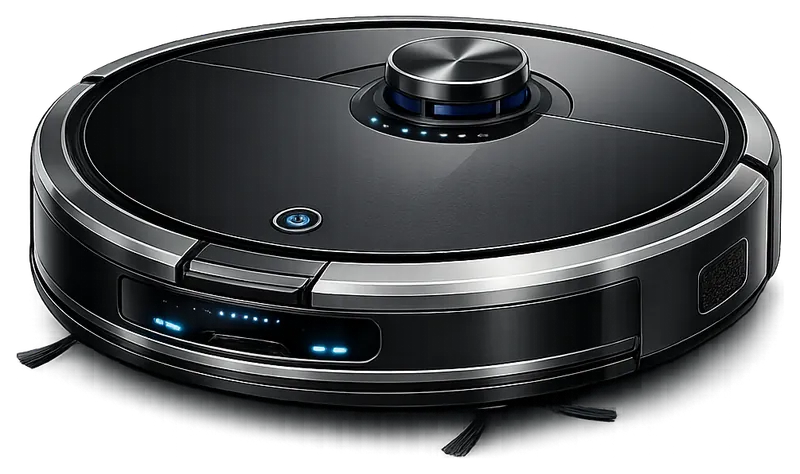
Robot vacuums have made cleaning easier, but when they stop working, diagnosing the problem can be confusing. Whether you have a Roomba, Shark, Roborock, or another brand, most robot vacuums share similar components and common problems.
Robot Vacuum Won’t Charge
Check the Charging Contacts
Both the vacuum and the charging dock have metal contacts that must be clean and aligned.
What to do:
- Wipe the contacts on the vacuum with a dry cloth
- Clean the dock’s charging contacts
- Make sure the dock is on a flat surface
- Check that the vacuum is seated properly on the dock
Charging Dock Issues
Check these:
- Is the dock plugged in? Check the power cable connection
- Is the dock’s indicator light on?
- Try plugging the dock into a different outlet
- Remove the dock from any power strips and plug directly into wall
Battery Problems
Robot vacuum batteries typically last 2-4 years with regular use.
Signs of a dying battery:
- Won’t hold a charge
- Runtime has decreased significantly
- Takes much longer to charge than it used to
- Won’t charge past a certain percentage
Battery replacement is straightforward on most robot vacuums - we can replace it for you, or some models allow user replacement.
Robot Vacuum Won’t Start or Move
Basic Checks
- Is it charged? Place on dock and wait at least 3 hours
- Is something blocking it? Check for debris wrapped around wheels
- Is there an error message? Check the app or listen for voice prompts
- Hard reset: Hold the “Clean” button for 10-20 seconds
Cliff Sensors Dirty
Cliff sensors prevent your robot from falling down stairs. If they’re dirty, the vacuum may think it’s always near a ledge and refuse to move.
How to clean:
- Flip the vacuum over
- Locate the cliff sensors (usually 4-6 small windows on the bottom)
- Wipe with a clean, dry cloth
- Check for debris covering the sensors
Wheel Problems
Check for:
- Hair or debris wrapped around wheel axles
- Worn wheel treads (smooth instead of grippy)
- Wheels that don’t spin freely
- One wheel stuck or not moving
Clean the wheels and axles regularly. If wheels are worn or motor is failing, they may need replacement.
Robot Vacuum Not Cleaning Well
Brush Problems
The most common reason for poor cleaning is dirty or worn brushes.
Main brush roller:
- Remove and inspect for hair/debris wrapped around it
- Cut away tangled hair with scissors (carefully)
- Check for worn bristles
- Replace if bristles are flat or missing
Side brush:
- Remove and check for debris at the base
- Make sure it spins freely
- Replace if bristles are bent or missing
Suction Issues
What to check:
- Clean or replace the filter (most should be cleaned weekly)
- Check for clogs in the suction pathway
- Empty the dustbin completely
- Check for cracks in the dustbin seal
Brush Motor Not Spinning
If the brush roller doesn’t spin when running:
- Make sure it’s installed correctly
- Check for debris jamming the ends
- If it still won’t spin, the brush motor may have failed (requires repair)
Navigation and Mapping Problems
Vacuum Going in Circles
Usually caused by:
- One wheel stuck or not moving
- Bumper stuck in the pressed position
- Dirty cliff sensors
Check each of these and clean/free as needed.
Vacuum Not Covering Entire Floor
For random navigation vacuums: This is somewhat normal - they work randomly and may take multiple passes.
For mapping vacuums:
- Delete and rebuild the map
- Make sure room lighting is adequate (cameras need light)
- Remove reflective surfaces that confuse sensors
- Check for infrared interference (some lights affect sensors)
Vacuum Keeps Getting Stuck
Common trouble spots:
- Cords and cables on the floor
- High door thresholds
- Rug tassels and fringes
- Chair and table legs
- Under furniture where it can’t escape
Consider using virtual walls/no-go zones in the app, or physically block problem areas during cleaning.
App and Connectivity Issues
Vacuum Won’t Connect to WiFi
- Make sure you’re using 2.4GHz WiFi (most robot vacuums don’t support 5GHz)
- Move the dock closer to your router temporarily
- Reset the vacuum’s WiFi settings and reconnect
- Check that your router isn’t blocking new devices
App Not Finding Vacuum
- Make sure Bluetooth is enabled on your phone
- Keep phone close to vacuum during setup
- Force close and reopen the app
- Try uninstalling and reinstalling the app
Error Codes and What They Mean
Most robot vacuums communicate errors through beeps, voice alerts, or app notifications. Here are common categories:
- Charging errors: Dirty contacts, dock issues, or battery problems
- Brush errors: Something jamming the brushes
- Wheel errors: Stuck wheel or motor failure
- Cliff errors: Dirty sensors or the vacuum is picked up
- Bin full: Empty the dustbin
Check your specific model’s manual for exact error codes.
When to Seek Repair
Bring it in if:
- Battery won’t hold a charge (we can replace it)
- Motors (brush, suction, or wheel) have failed
- Charging circuit problems
- Motherboard or sensor issues
- Physical damage to housing or components
Maintenance Tips to Prevent Problems
Regular maintenance prevents most robot vacuum issues:
- After every use: Empty the dustbin
- Weekly: Clean the filter, check brushes for debris
- Monthly: Clean sensors, wheels, and charging contacts
- Every 6-12 months: Replace filter and brushes
- Every 2-4 years: Replace battery (depending on use)
A well-maintained robot vacuum can last 5-7 years. We’re happy to give yours a checkup and clean if it’s been neglected.
Tags:
Need Professional Help?
If you've tried these troubleshooting steps and your device still isn't working, we're here to help. Bring it in for a free diagnosis - we'll figure out what's wrong and give you a clear estimate before any work begins.
Get a Free Diagnosis