
Smart Home Hub Not Responding? Troubleshooting Guide
Smart home hub offline, devices not responding, or automation failing? Learn how to troubleshoot common smart home hub problems.
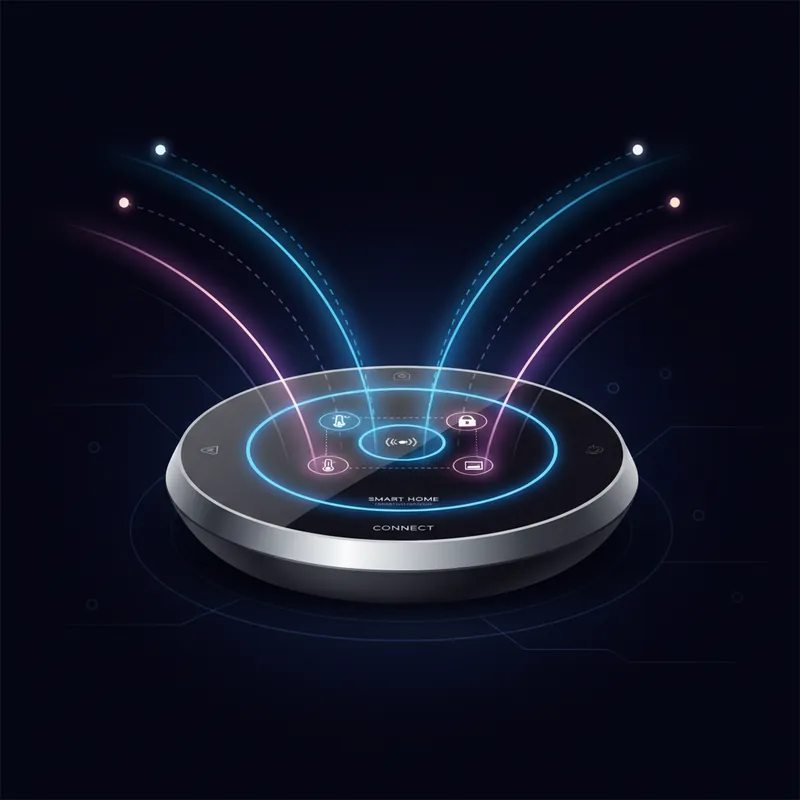
Smart home hubs are the brains of your home automation system. When they stop working, everything from your lights to your thermostat can become unresponsive. Here’s how to troubleshoot common smart home hub problems.
Hub Won’t Connect to Network
When your hub shows offline:
Check Your Internet
- Verify your internet is working (test with other devices)
- Restart your router and modem
- Check if your ISP is having an outage
- Some hubs require internet even for local control
Check Physical Connections
- Ensure the Ethernet cable is secure (if wired)
- Verify the hub has power (check indicator lights)
- Try a different Ethernet port on your router
- Try a different Ethernet cable
WiFi-Connected Hubs
- Check if your WiFi network is visible to other devices
- Move the hub closer to your router
- Check for WiFi password changes
- Some hubs only support 2.4GHz WiFi
Reset Network Settings
- Most hubs have a network reset option
- This usually requires re-pairing devices
- Check your hub’s manual for the specific procedure
Devices Not Responding
When your hub is online but devices aren’t working:
Individual Device Issues
- Check if the device has power
- Try controlling the device directly (physical button)
- Check the device’s connection in your hub app
- Try removing and re-adding the device
Zigbee/Z-Wave Devices
These mesh network protocols can have range issues:
- Zigbee and Z-Wave devices relay signals to each other
- Adding more devices can actually improve coverage
- Battery-powered devices are often the edge of the mesh
- Plugged-in devices act as repeaters
Improving mesh reliability:
- Add smart plugs as repeaters in dead zones
- Keep the hub central to your home
- Reduce distance between devices
- Avoid placing the hub near metal objects or interference sources
WiFi-Connected Devices
- Check that devices are on the same network as your hub
- 2.4GHz networks reach further than 5GHz
- Too many WiFi devices can overwhelm your router
- Consider a mesh WiFi system for better coverage
Automations Not Working
When schedules and routines fail:
Check Automation Settings
- Verify the automation is still enabled
- Check the trigger conditions
- Review the actions and devices involved
- Test each device individually
Time and Location Issues
- Verify your hub has the correct time zone
- Check that location services are enabled
- Sunrise/sunset automations depend on accurate location
- Time-based triggers need accurate clock sync
Cloud Dependency
- Some automations require cloud services
- Internet outages break cloud-dependent routines
- Check service status pages during widespread failures
- Consider local-only alternatives for critical automations
Voice Control Problems
Voice Assistant Not Finding Devices
- Relink your hub account in the voice assistant app
- Say “discover devices” or run a device scan
- Check that device names aren’t too similar
- Remove and re-add problematic devices
Commands Not Understood
- Use the exact device names configured in your hub
- Simplify device names (avoid special characters)
- Group devices into rooms for easier control
- Check that the hub skill is enabled in your voice assistant
Hub Running Slowly
General Performance Issues
- Restart the hub (power cycle)
- Check for firmware updates
- Reduce the number of active automations
- Limit logging and history features
- Check available storage if applicable
Too Many Devices
- Some hubs have device limits
- Consider upgrading to a more capable hub
- Split devices across multiple hubs if possible
- Remove unused devices
Complete Hub Failure
When the hub won’t respond at all:
Power Issues
- Try a different power outlet
- Check the power adapter
- Look for damage to the power cable
- Try a compatible replacement adapter
Factory Reset
As a last resort:
- This will erase all settings and pairings
- You’ll need to set up everything from scratch
- Check your hub’s manual for reset procedure
- Back up your configuration first if possible
Hardware Failure
Signs your hub may have failed:
- No indicator lights despite confirmed power
- Excessive heat
- Burning smell
- Physical damage
When to Seek Professional Help
Consider professional assistance when:
- You’ve exhausted troubleshooting steps
- The hub shows signs of hardware failure
- You need complex networking solutions
- You’re migrating to a new smart home system
What We Can Help With
We work on various smart home systems:
- Hub diagnostics - Identify hardware vs software issues
- Network optimization - Improve device connectivity
- Migration assistance - Move to a new platform
- Integration setup - Connect different ecosystems
We can also repair networking equipment that affects smart home performance, including routers, switches, and access points.
Prevention Tips
Keep your smart home running smoothly:
- Keep hub firmware updated
- Use a UPS battery backup for your hub
- Document your device pairings and automations
- Regularly test critical automations
- Keep your router’s firmware updated
- Use a dedicated network for IoT devices if possible
Having smart home troubles? Bring in your hub for a free diagnosis and we’ll help you get your automation back on track.
Tags:
Need Professional Help?
If you've tried these troubleshooting steps and your device still isn't working, we're here to help. Bring it in for a free diagnosis - we'll figure out what's wrong and give you a clear estimate before any work begins.
Get a Free Diagnosis